


Getting started
Setup build environment
Independent of GWT or TeaVM you should add gwtswing.css to your index.html to ensure an consistent display of the UI elements.
With GWT
The first step you will need to do before using GWTSwing is to add it to your build environment. This is simply done by adding it to the classpath of your GWT application. After that you can inherit it like any other GWT Module by adding this line to your *.gwt.xml file.
    <inherits name='de.exware.gplatform' />
    <inherits name='de.exware.gwtswing' />
In your index.html File you add the gwtswing.css as follows:
<link type="text/css" rel="stylesheet" href="YOUR_GWT_PROJECTNAME/de/exware/gwtswing/gwtswing.css"/>
With TeaVM
Add the required dependencies to your pom.xml. In your index.html File you add the gwtswing.css as follows:
<link href="./de/exware/gwtswing/gwtswing.css" rel="stylesheet"/>
First example - Creating a simple Message Popup
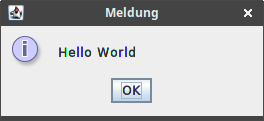
In regular Swing applications you can open standard Dialogs by using the Class JOptionPane. The same can be done in GWTSwing using the class GOptionPane. Let's see an example:Swing Version
JOptionPane.showMessageDialog(null, "Hello World");This will result in a popup dialog like this:
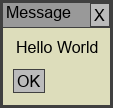
GWTSwing Version
GOptionPane.showMessageDialog(null, "Hello World");This will result in a popup dialog like this:
Using some basic UI Elements
You can use most of the Standard UI Elements of Swing like Labels, Buttons, Checkboxes, Radiobuttons a.s.o. just like you are used to in Swing. Just use the GWTSwing Version of the Class. Here's a (incomplete) list of some available classes and their Swing counterpart.| GWTSwing Class | Swing/AWT Class |
|---|---|
| GLabel | JLabel |
| GTextField | JTextField |
| GButton | JButton |
| GRadioButton | JRadioButton |
| GButtonGroup | ButtonGroup |
| GCheckBox | JCheckBox |
| GComboBox | JComboBox |
| GFrame | JFrame |
| GDialog | JDialog |
| GTable | JTable |
| GTree | JTree |
| GMenuBar | JMenuBar |
| GToolBar | JToolBar |
| GPopupMenu | JPopupMenu |
| GTabbedPane | JTabbedPane |
| GBorderLayout | BorderLayout |
| GGridLayout | GridLayout |
| GActionListener | ActionListener |
| GActionEvent | ActionEvent |
| GMouseListener | MouseListener |
| GMouseEvent | MouseEvent |
| GDimension | Dimension |
| GPoint | Point |
| GBorderFactory | BorderFactory |
| GLineBorder | LineBorder |
| GEtchedBorder | EtchedBorder |
| G... | ... |
Porting existing Swing Applications
As a rule of thumb, start by replacing all occurances of JLabel, JButton, JPanel a.s.o. by their GWTSwing Versions GLabel, GButton, GPanel a.s.o. Or simpler replace all occurences of 'J' at the beginning of a classname by 'G'.
We have prefixed all available Swing and AWT classes with an uppercase 'G' to avoid duplicate classnames in the autocompletion of your IDE. This is even true for Event classes and Listener classes like ActionEvent and ActionListener which are named GActionEvent and GActionListener.
Porting Dialogs
There are no Modal Dialogs in GWTSwing. As a result you need to change your code where your Swing Application creates Modal Dialogs. This can be done by simply moving the code that was executed after the Modal Dialog was closed into the execute Method of an instance of GDialogCallback.Swing Version
	public void actionPerformed(ActionEvent evt)
	{
		JDialog dlg = new JDialog(window, true);
		dlg.pack();
		dlg.show();
		//MY POST DIALOG CODE GOES HERE
		//...
	}
GWTSwing Version
	public void actionPerformed(GActionEvent evt)
	{
		GDialogCallback callback = new GDialogCallback()
		{
			@Override
			public void execute()
			{
				//MY POST DIALOG CODE GOES HERE
				//...
			}
		};
		GDialog dlg = new GDialog(callback);
		dlg.pack();
		dlg.show();
	}